
Overview
We highly recommend using the on-board micro SD card when printing with your Gigabot.
Instructions:
- Start with 3D CAD model in .stl file format.
- Use Simplify3D to process the model and export the G-code instructions for your Gigabot.
- Download the File:20mm-box.stl.
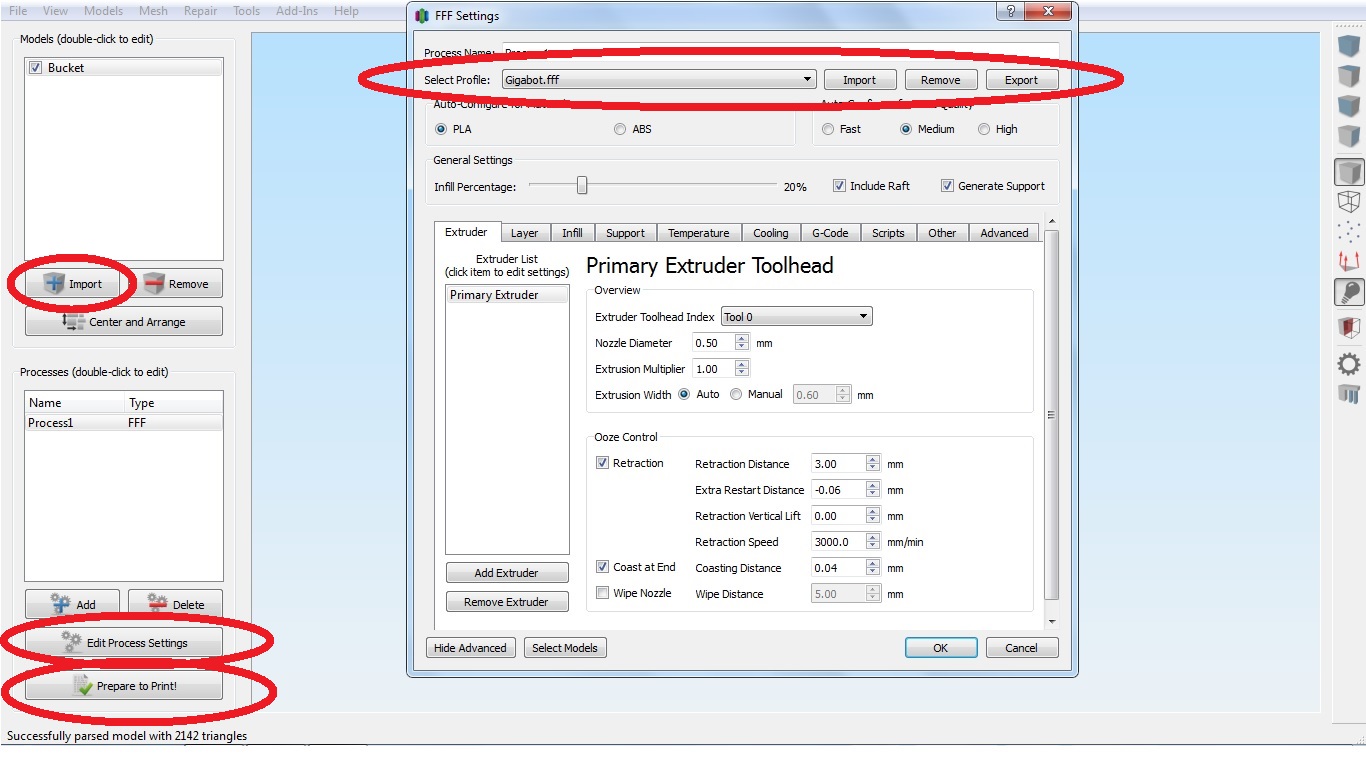
- Open Simplify3D and import the 20mm-box.stl.
- Verify your Gigabot settings are selected and active in Simplify3D under "Edit Process Settings."
- Transfer the G-code to the microSD card and print directly from the Viki controller.
- From the main screen in Simplify3D, click on the "Prepare to Print" button.
- Save the G-code file to your computer.
- Open Pronterface and connect to your Gigabot.
- In Pronterface, click on "Load File" and open the G-code file generated by Simplify3D.
- The tool path will show in the Pronterface preview window.
- Click "Print" and your Gigabot will begin heating the bed. It will heat the hot end, and then it will begin printing.
Questions or concerns? Reach out to our support team at support@re:3D.org or open a support ticket.
Comments
0 comments
Please sign in to leave a comment.